
Your AI research copilot,
built into every page you visit.
Constellation reads what you read, remembers your sources, and delivers structured answers without leaving your browser.
Getting Started
Install and launch in under a minute
Constellation is a browser extension that works across Chromium-based browsers including Chrome, Edge, and Brave. Once installed, the Constellation logo appears next to your address bar.
If you do not see it right away, click the puzzle-piece extensions icon in your toolbar and pin Constellation so it is always one click away.
Pin Constellation from your browser Extensions menu to keep it accessible at all times.
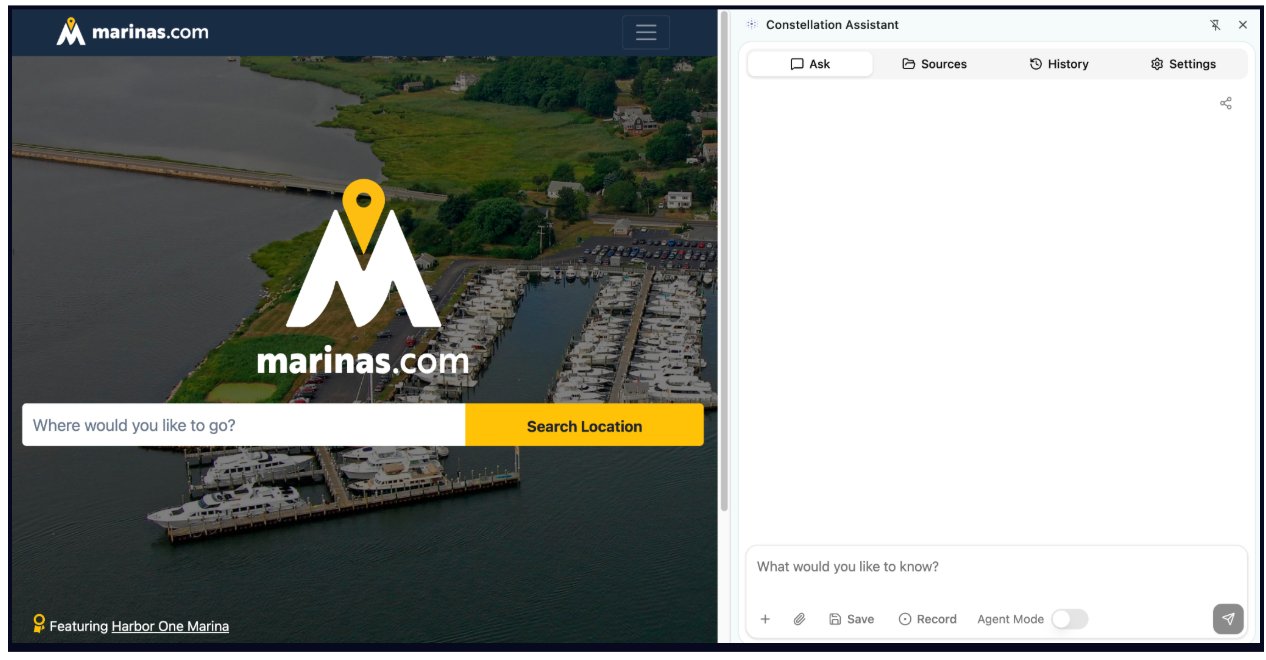
Click the Constellation logo at any time to open or close the panel. Your browsing is never interrupted because the panel slides in alongside your current page.
The Constellation panel opens on the right side, and your browser stays fully usable while it is open.
Header Bar
Your navigation hub across all features
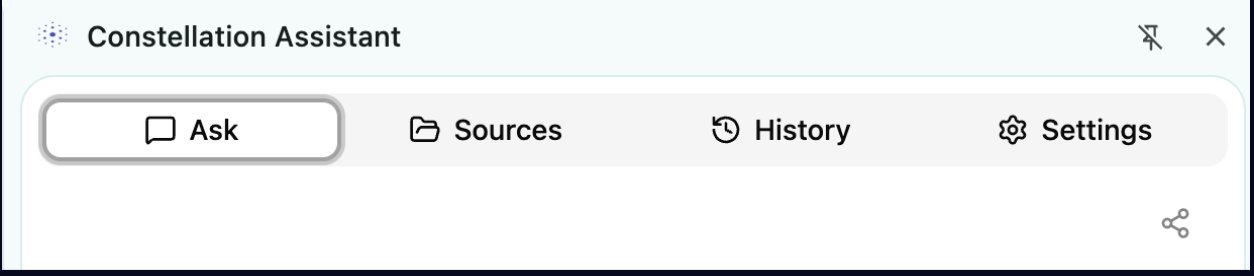
At the top of every Constellation panel, four tabs organize the core functionality. Each tab is purpose-built for a different part of your research workflow.
The four-tab header bar is always visible, so you can switch instantly between Ask, Sources, History, and Settings.
Ask
Your main workspace. Type any prompt and receive answers grounded in your selected pages.
Sources
Manage all pages and PDFs in your current context. Add, remove, or inspect token usage at a glance.
History
Access every past session with full context intact, including sources, responses, and tables.
Settings
Build saved prompts and custom instructions that apply to every query.
Ask
Your home base for every query
The Ask tab is where all interaction happens. At the bottom of the panel, type your question, press Enter, and Constellation generates a response directly in the panel. You can stop a response mid-stream at any point.
What sets Constellation apart from a generic AI tool is context awareness. By default it reads the page you are currently on, so if you are viewing a company investor relations page and ask about revenue, it pulls the answer from that page instead of the broader internet.

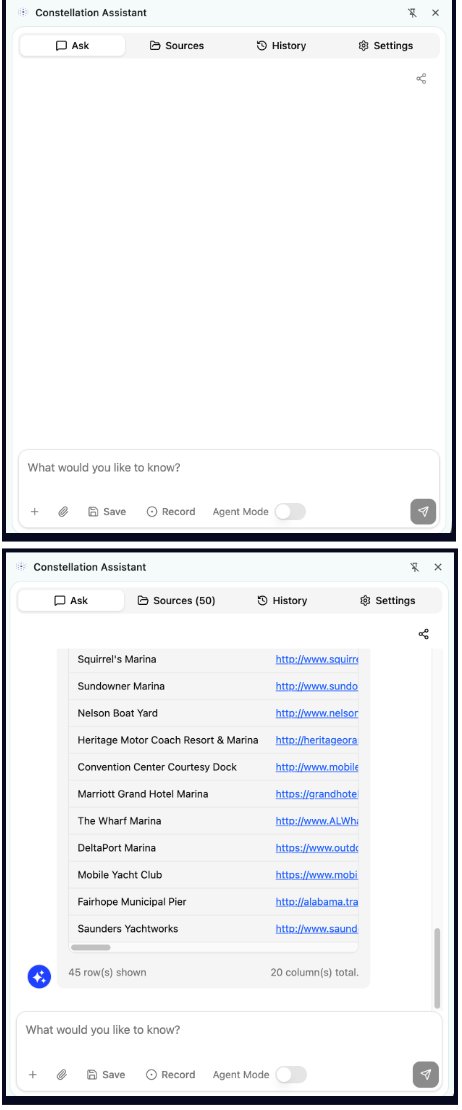
The Ask tab lets you type a question at the bottom and get an answer using only the pages in your context.
Be specific with your prompts. The more context you give, the better the output.
If a response goes wrong, delete that message and re-ask with different wording.
When you finish a task, start a new chat. Clean context delivers better results.
Context Window
Control exactly which pages inform your answers
At the bottom of the Ask tab, two controls let you shape what Constellation knows about. Together they form your context window, which is the collection of pages every response is drawn from.
Save and Record controls sit at the bottom of the Ask tab. Use them to build your source context.
Save
Manually add the current page to your context. Use this when you want to select only the exact pages relevant to your query.
Record
Automatically captures every page you visit while active. This is useful for exploratory sessions where you want to build a full picture without saving each page manually.
You can also upload PDFs directly into your context. They appear in the Sources tab alongside your web pages and are treated as source material for queries.
Sources
Review and refine everything in your context
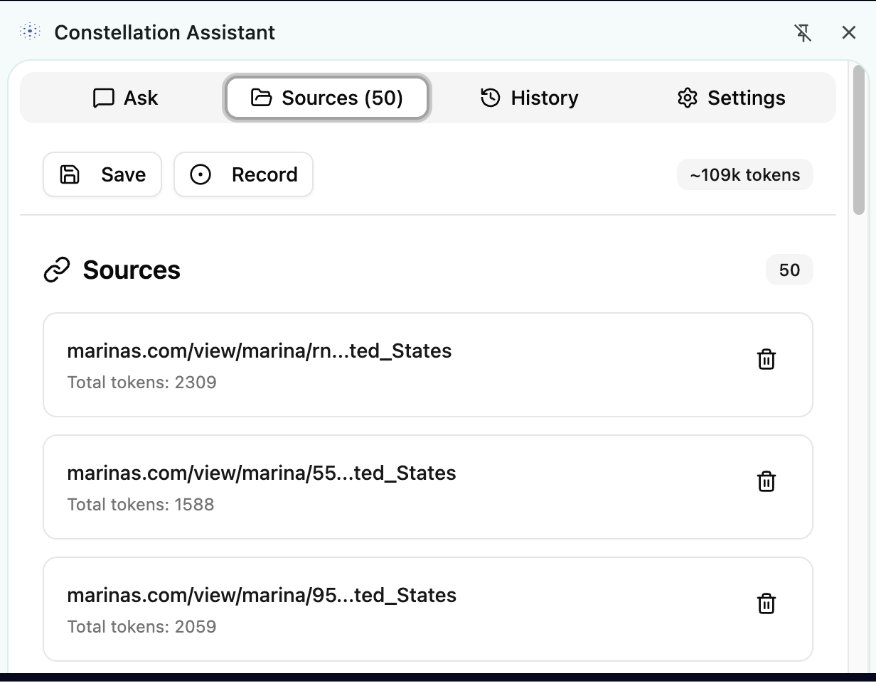
The Sources tab gives you a full inventory of every page and document loaded into Constellation context. For each source, you can see its URL and token count.
Remove individual sources at any time to refine your dataset without starting over. This is useful after recording a broad browsing session when you want to trim down to the most relevant pages before running a final query.
Every loaded source shows its URL and token count. Delete individual pages to keep your context focused.
History
Every session saved and ready to continue
The History tab keeps a complete record of your previous Constellation sessions. When you reopen a past chat, everything is restored exactly as you left it, including sources, responses, and any generated tables.
This makes it easy to revisit earlier research, compare past outputs, or continue building on work started in a previous session.
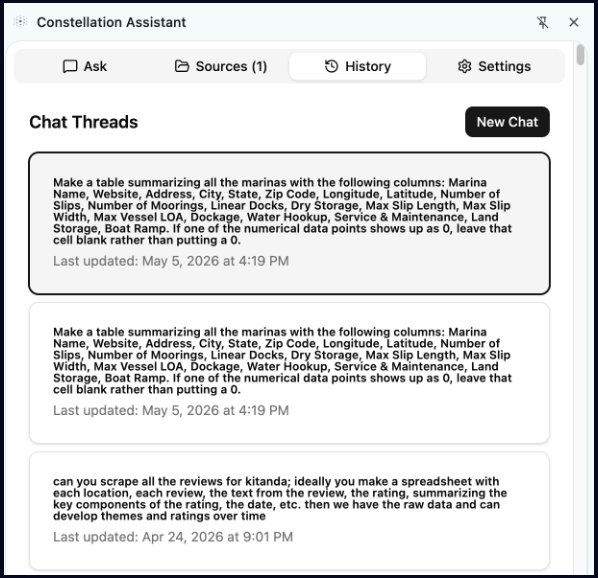
Every session is logged with its prompt and timestamp. Reopen any chat to restore where you left off.
Settings
Where casual users become power users
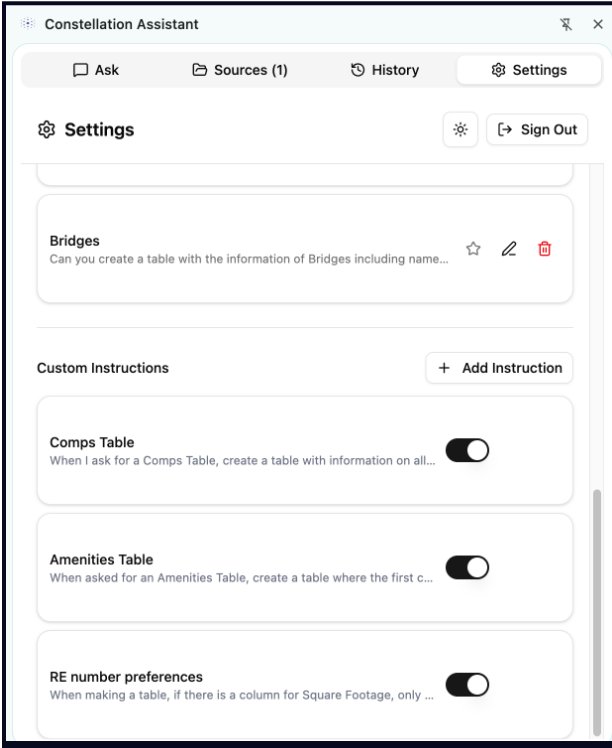
The Settings tab is where Saved Prompts and Custom Instructions let you build a personalized research system that works the same way every time.
Build a personal library of prompts you reuse regularly, such as a competitive analysis format, due diligence checklist, or data extraction template.
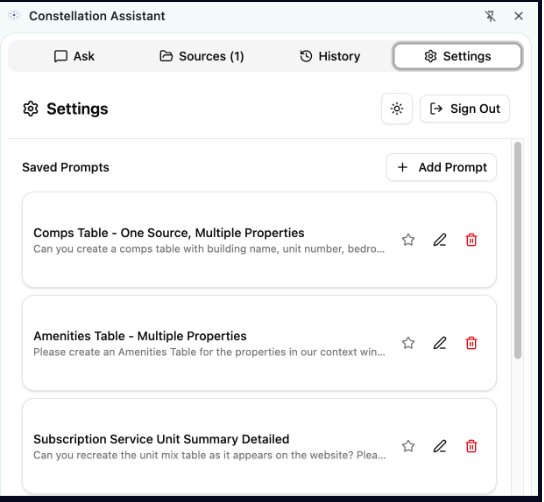
Custom Instructions are standing orders that apply to every query. Define table structure, columns, and formatting once, and Constellation follows those rules automatically.
Agent Mode
Let Constellation do the research for you
Agent Mode lets Constellation do the research work for you. Instead of manually opening, saving, or navigating pages, the agent explores relevant links, captures sources, and builds a structured dataset from them.
Define what you want with a prompt, and Constellation handles tasks like visiting URLs, tracking sources, and organizing outputs in real time.
What used to take hours of manual research can be done in minutes, with results delivered as clean, exportable tables ready for analysis.
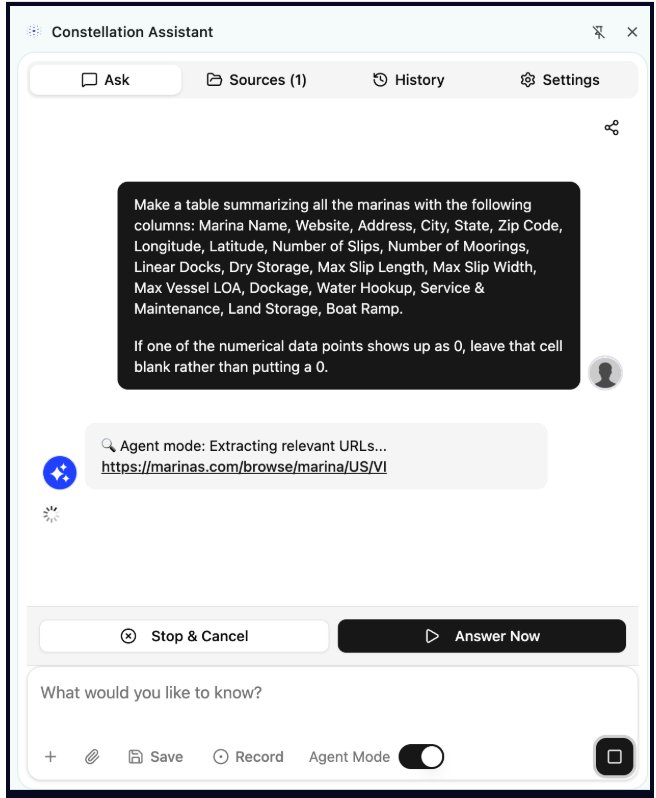
Agent Mode in action: Constellation navigates pages, extracts sources, and assembles structured data automatically.
Automatic navigation
The agent follows relevant links on its own, opening pages in the background without manual clicking.
Structured output
Results arrive as clean, organized tables that can be downloaded as CSV for Excel or Google Sheets.
Full transparency
See which pages were visited and how many sources were analyzed, with visibility into how each answer was built.
Ready to transform your research workflow?
Install Constellation and start getting answers from the pages you are already visiting.
Add to Chrome - It's Free